
01 / Customer portalReport requests
Report requests
in a structured way.
Create a ticket, add information, answer questions and track progress.
Open the NALVRA customer portalCustomer portal or remote assistance: choose the right starting point.
Create a ticket, add information, answer questions and track progress.
Open the NALVRA customer portal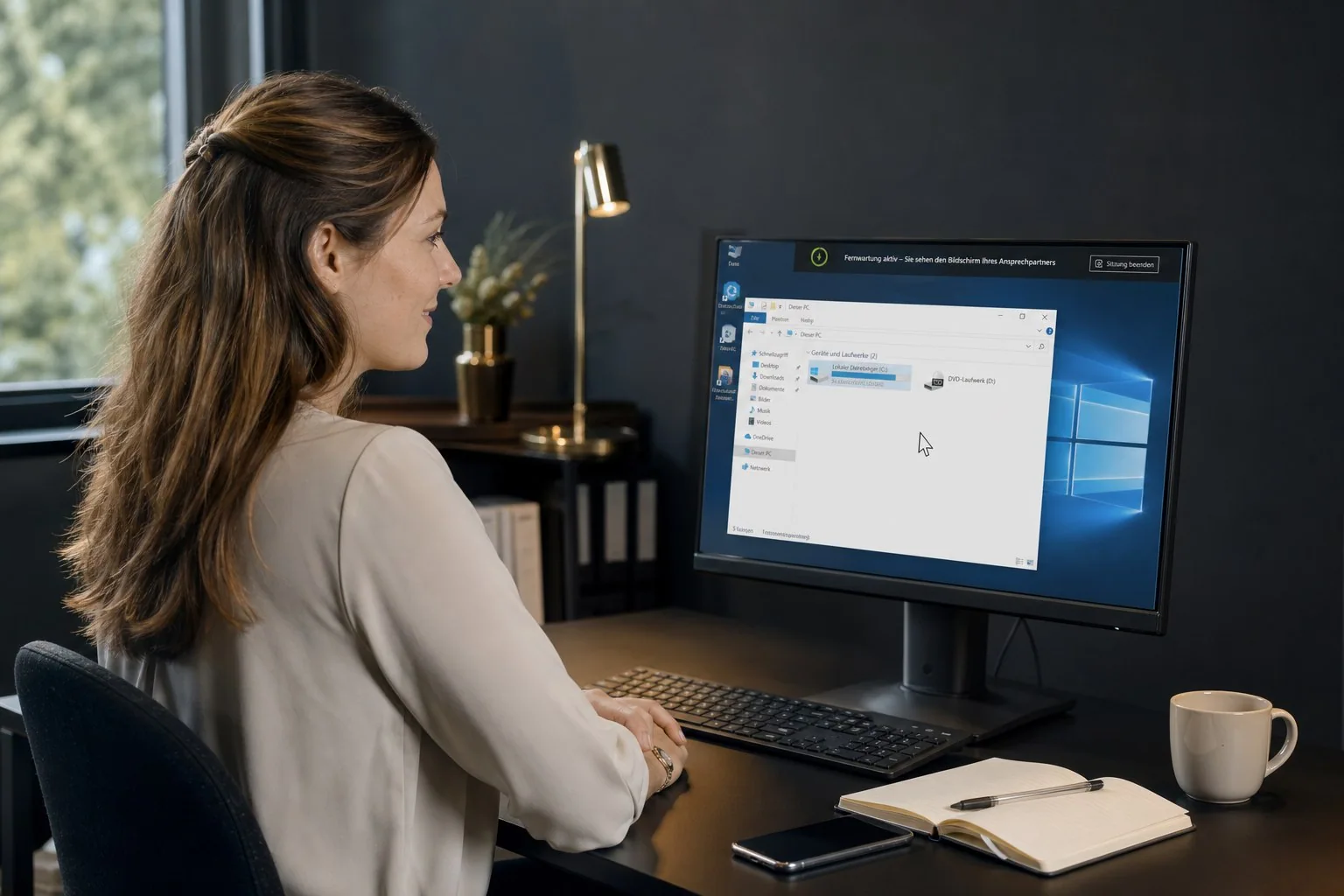
Microsoft Quick Assist opens only after you click. You approve access yourself in the application.
Start remote assistanceFor Windows with Quick Assist available. Arrange the session with NALVRA first. Microsoft guidance
Incident support, forensics & erasure
Incident support & media analysis8 answers
Arrange assistance with NALVRA first. The link opens Microsoft Quick Assist using the Windows protocol ms-quick-assist://. Your browser and Windows may request additional confirmation. Your support contact provides the session code.
You approve sharing in Quick Assist yourself. Additional control permission is requested separately. You can end the session. Enter a session code only for assistance you are expecting.
If a support or maintenance contract exists, billing follows it. Otherwise, effort and cost are agreed with you before assistance.
Open the existing customer portal, sign in and describe the issue. Include the product, error message, time and steps already tried. Credentials do not belong in tickets.
The customer portal is available in your browser. Windows remote sessions require Microsoft Quick Assist; installation or availability depends on your Windows environment and company policies.
Service hours, priorities and response targets follow the agreed support scope and any maintenance contract.
NALVRA SERVICE is a standalone service and support application. The product page provides an introduction; suitable scope and deployment are discussed with you.
NALVRA's existing privacy statement has been retained on this website. You can access it through the footer and the link below the support section.
No answer matched your search. Email us at support@nalvra.de.
privacy information